If for professional printing (eg. photo, bar code) then both are good. Both have good printer heads that last long. like me, lots of print then I would go for Canon cause easy to get CISS (Continuous Ink Supply System) aka external ink. For me, printer head problem no problem. The printer comes with three modes – high, standard and quick, along with a customizable preset. It’s a budget all in one, so there are going to be trade offs between quality and speed of prints. photo print tests, the E500 managed to do a full sized photo printout in 101 seconds.
Wednesday, 26 June 2013
Canon E500 vs HP 2515 ?
 1 comments
If for professional printing (eg. photo, bar code) then both are good. Both have good printer heads that last long. like me, lots of print then I would go for Canon cause easy to get CISS (Continuous Ink Supply System) aka external ink. For me, printer head problem no problem. The printer comes with three modes – high, standard and quick, along with a customizable preset. It’s a budget all in one, so there are going to be trade offs between quality and speed of prints. photo print tests, the E500 managed to do a full sized photo printout in 101 seconds.


Wednesday, 10 April 2013
If Paper Is Jammed inside the Printer - Canon Printer
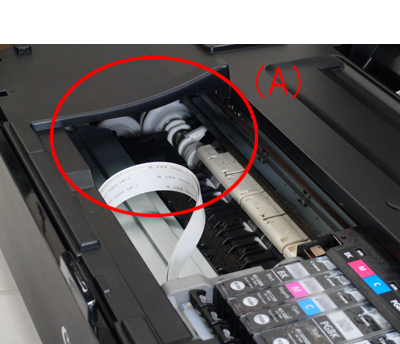
IF Paper Is Jammed inside the Canon Printer Machine
Remove the paper following the procedure below.
1. Turn off the machine, and unplug the power cord of the machine from the power supply.
2. Open the scanning unit / cover.
IMPORTANT
Do not touch the clear film (A) or the white belt (B).
If the paper or your hands touch these parts and blot or scratch them, the machine can be damaged.
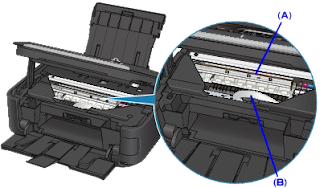
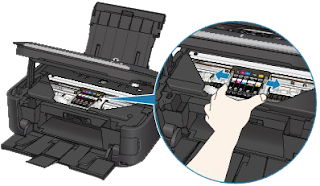
3. Make sure that the print head holder does not hang over the paper.
If the print head holder hangs over the paper, move the print head holder to the right edge or the left edge whichever is easier to remove the paper.
When you move the print head holder, hold the top of the print head holder and slide it slowly to the right edge or the left edge.
4. Hold the jammed paper with your hands.
If the edge of paper is jammed near the paper output slot, pull the edge of paper to the position where you can hold it with your hands.
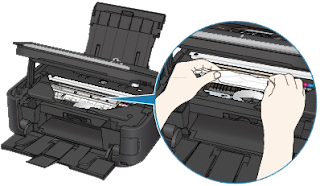
5. Pull the paper slowly not to tear it, then pull the paper out diagonally forward in front at aslant.
Keep an angle of the paper about 45 degrees and pull it slowly.
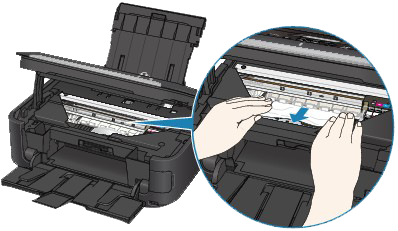
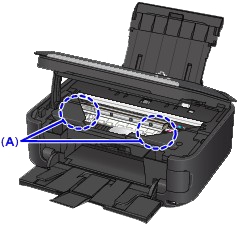
6. Make sure that all the jammed paper is removed.If the paper is torn, a piece of paper may remain inside the machine. Check the following and remove the piece of paper if it remains.
Does the piece of paper remain under the print head holder?
Does the little piece of paper remain inside the machine?
Does the piece of paper remain in the right side or the left side space (A) inside the machine?
7. Close the Scanning Unit (Cover), then reload the paper.
All print jobs in the queue are canceled. Reprint if necessary.
REFERENCE
If the message about paper jam is displayed when you resume printing after removing all the jammed paper, a piece of paper may remain inside the machine. In this case, confirm that no piece of paper remains inside the machine.
If you cannot remove the paper or the paper tears inside the machine, or if the paper jam error continues after removing the paper, contact the service center.
Wednesday, 19 September 2012
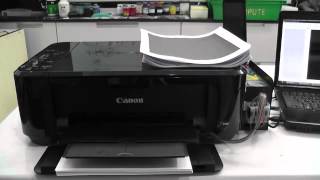
Canon Pixma E500 CISS installation - Youtube

Canon Pixma E500 CISS installation- Youtube
The PIXMA Ink Efficient E500 is built to give you an affordable printing experience. Besides print, copy and scan functionalities, the PIXMA E500 also offers innovative Full HD Movie Print and Fun Filter Effect to dramatize your photos.
Maximum Printing Resolution
4800 (horizontal)*1 x 1200 (vertical)dpi
Print Head / Ink
Type: FINE ™ Cartridge
Total Number of Nozzles: 1792
Ink Droplet Size (min.): 2pl
Ink Tank: PG-88, CL-98
Print Speed Based on ISO / IEC 24734.
Click here for summary report
Click here for Document Print and Copy Speed Measurement Conditions
Color : Approx. 5.0ipm
Black :Approx. 8.6ipm
Printable Width Up to 203.2mm (8-inches)
Borderless: Up to 216mm (8.5-inches)
Ink End Sensor Dot count
Print Head Alignment Manual
Scanner Type Flatbed
Scanning Method CIS (Contact Image Sensor)
Optical Resolution*4 1200 x 2400dpi
Selectable Resolution 25 - 19200dpi
More info Here
Download Driver and Software Here
Tuesday, 17 July 2012
Web for Download CISS Installation Manuals

GREAT WEB FOR DOWNLOAD INSTALLATION MANUALS
Great site to learn CISS installation
Continuous Ink Supply Systems (CISS)
Here you can find Installation manuals for the majority of Continuous Ink Supply Systems for printers, all-in-ones, and plotters from Epson, Canon, Hp, Brother, and Roland from INKSYSTEM company. Lot of quality of Installation Manuals and Videos here.
Usage of CISS
How does Continious Ink System works: watch video
Comparison of printing quality: CISS and original cartridges watch video
Refilling of CISS
How to refill INKSYSTEM CISS: watch video
Reset chip
How to reset chip on NKSYSTEM CISS: watch video
How to install Continuous Ink Supply Systems (CISS)
More info get it HERE
Source from http://www.inksystem.org/instrukcii.htm
7CJDA5CHSMK7
Subscribe to:
Posts (Atom)


